Set your browser to open the SiOnline panel
Find the Opera startup-settings guide, use the SiOnline retailer panel directly, and get help if an old browser setting no longer matches your version.
The previous SI Online website offered a guide to Opera’s page startup settings. A startup page is a convenience: you can always open the SiOnline retailer panel directly.
Choose your startup page
Open your browser’s settings and find its startup-page options. If your version supports
opening a specific page at startup, use https://www.sionline.in/retailer/.
Menu names vary between browser versions; consult Opera’s current help if the old
instructions do not match your screen.
Step by step in Opera
These screenshots show the Opera settings screens as the previous guide did. Menu names can differ in newer versions.
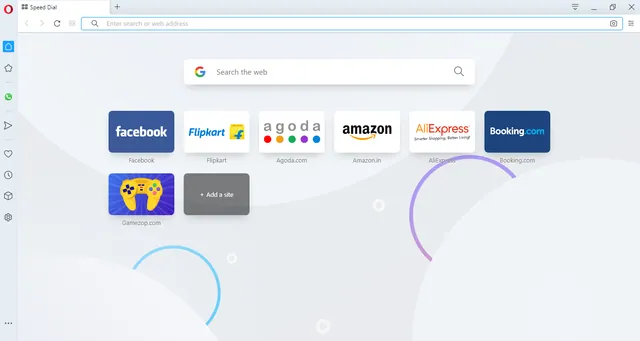
- Open the Opera browser on your laptop or PC.
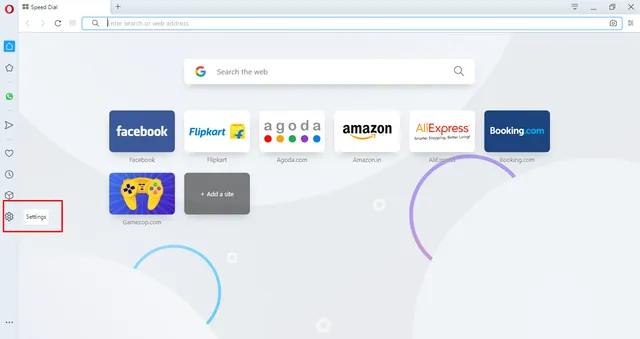
- Click the Settings gear at the bottom of the left-hand bar, shown in the red box.
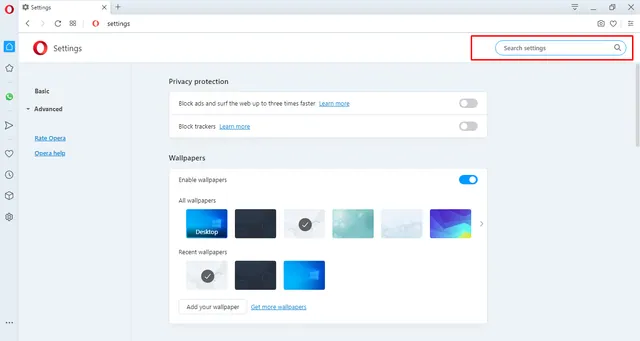
- Go to the search box at the top right of the Settings page.
- Type “TAB”, “Fresh” or “StartUp” into the settings search box. The On startup section appears.
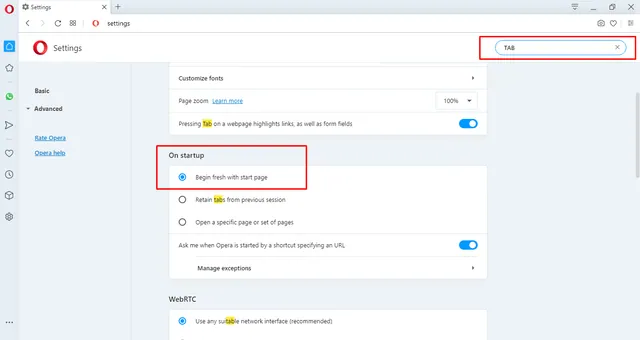
- Under On startup, select the “Begin fresh with start page” radio button.
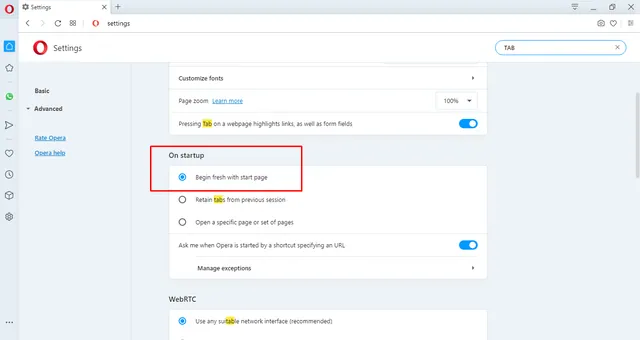
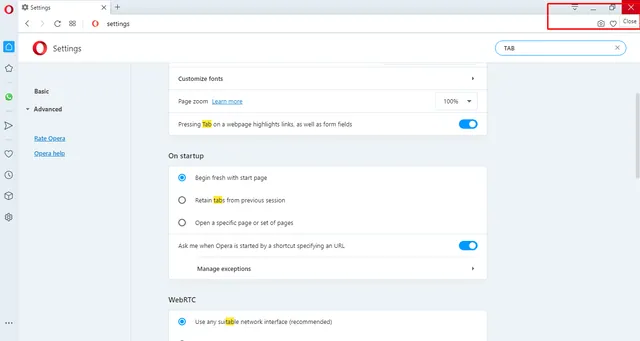
- Opera saves the setting automatically. Close the browser and open it again.
Keep account details private
A startup page should contain the login URL, never your password or an OTP. On a shared counter computer, sign out at the end of your session.
If your browser cannot open the panel, contact SiOnline support with your browser version and the error text.
Never share your password. Nobody at SiOnline needs it, and no legitimate service will ask. If you need help, send us your agent ID — not your credentials.
Support runs 24 hours, 7 days
Call or WhatsApp with your agent ID. AI-assisted round the clock, with the team on hand during business hours.
+91 91091 35959Help centre
Every step-by-step guide, grouped by what you are doing.
Open the help centre